Contamination Sensor CS 1500 Series
POA
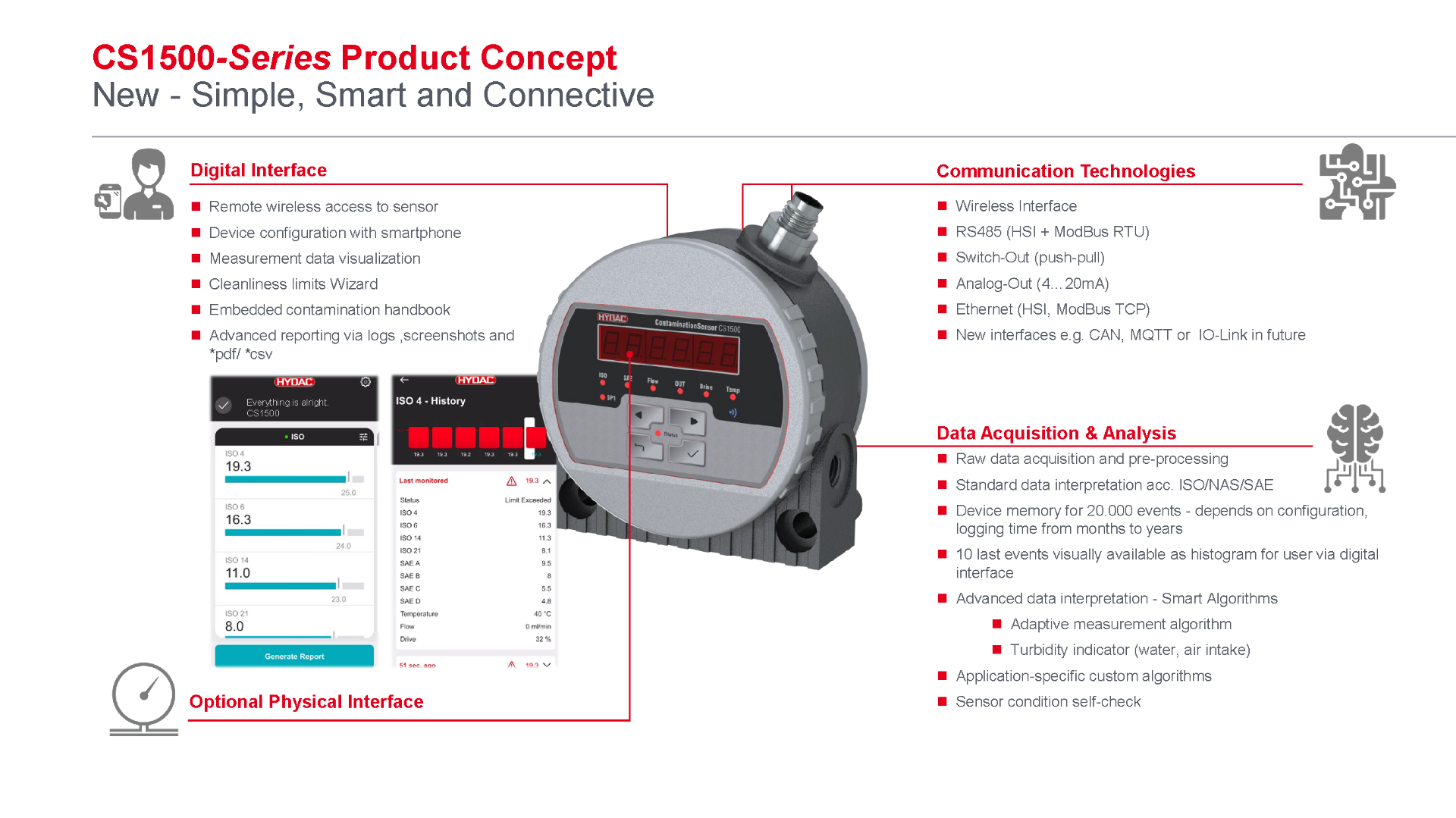
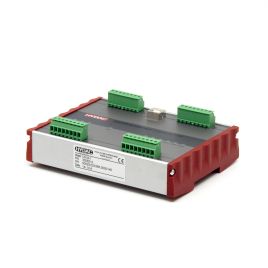
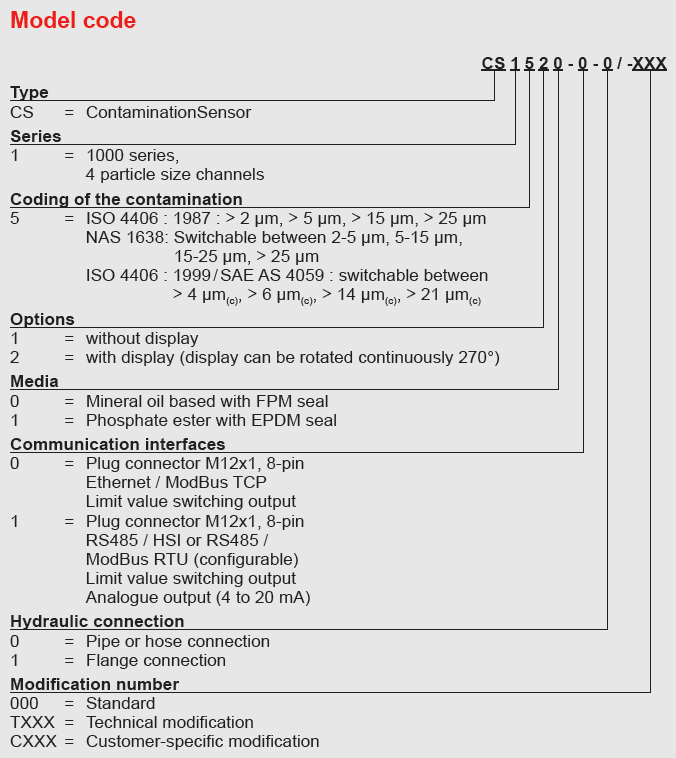
The Contamination Sensor CS1500 is used to continuously monitor the particle contamination in fluids. The cleanliness class results can be displayed according to ISO/SAE or ISO/NAS classifications. Using the latest technologies, combined with more than 20 years of tried-and-tested engineering, we can now provide the user with a small and robust sensor. Operating the sensor with mobile terminal devices is easy and intuitive thanks to the new digital interface.
What's New
Simple
- New Digital Interface
- Cleanliness Limits Wizard
- Extended Reporting
Smart
- New platform for advanced data analysis
- Adaptive measurement cycle
- Turbidity detection
Connective
- New wireless interface
- New data interfaces
- Digital IoT integration packages
Client benefits:
- High plant availability, safety and productivity
- Early awareness of system damage and dirt ingress
- Demand-oriented services
- Avoidance of unplanned downtimes
- Benefits from LCC-Savings potential
- Simple commissioning & minimization of installation errors
- Easy fluid cleanliness monitoring & reporting
| Product | ||||||||
|---|---|---|---|---|---|---|---|---|
| No options of this product are available. | ||||||||
Please contact the store to confirm stock availability near you
Recommended Products




Latest News







FAQs
- How to select correct sensor?
To select the correct sensor, please refer to the product datasheet.
 How to connect the ContaminationSensor via WLAN?
Option 1: Via captive portal
Step 1. Ensure that the WLAN on the ContaminationSensor is activated – blue Wi-Fi LED indicator is permanently on.
Step 2. Establish a WLAN connection between the Contamination Sensor and your mobile device.
- To do this, check the available WLAN connections on your device and select the ContaminationSensor WLAN.
- By default WLAN Name of the sensor looks like CS1500SNxxx and corresponds to the SSID.
- Here, xxx corresponds to the serial number of the certain ContaminationSensor.
- If new sensor started for the first time – unique factory password key input is mandatory to complete the connection. Later password function can be disabled or changed upon the user necessity. Factory password can be found in factory settings sheet which is a part of sensor delivery scope or in digital downloads area accessible via QR-Code on the back of the sensor.
- After successful connection blue Wi-Fi LED indicator is blinking.
Step 3. The web UI of the ContaminationSensor is accessed automatically after a successful connection via WLAN. The transfer to the web UI of the ContaminationSensor is automatic.
- The web UI of the ContaminationSensor opens via Captive Portal.
- Please confirm the connection by hitting confirmation buttons on both windows that appeared after connection.
Note: Should not the Captive Portal/ web UI window automatically appear after connection to the sensor please proceed with manual connection using the URL or IP address as described on the next page
Option 2: Via URL or IP address
If the automatic opening of the web UI of the ContaminationSensor does not appear on your end device, you can open the web UI manually. The following steps provide further detail:
Step 1. Ensure that the WLAN on the ContaminationSensor is activated – blue Wi-Fi LED indicator is permanently on.
Step 2. Establish a WLAN connection between the Contamination Sensor and your mobile device.
- To do this, check the available WLAN connections on your device and select the ContaminationSensorWLAN.
- By default, WLAN Name of the sensor looks like CS1500SNxxx and corresponds to the SSID.
- Here, xxx corresponds to the serial number of the certain ContaminationSensor.
- If new sensor started for the first time – unique factory password key input is mandatory to complete the connection. Later password function can be disabled or changed upon the user necessity. Factory password can be found in factory settings sheet which is a part of sensor delivery scope or in digital downloads area accessible via QR-Code on the back of the sensor.
- After successful connection blue Wi-Fi LED indicator is blinking.
Step 3. Open the browser on your end device for example Chrome or Safari.
Step 4. Enter the URL http://cs1500 in the address bar of your browser. OR
- Enter the default Sensor WLAN IP address instead – 192.168.4.1
Step 5. The web UI of the ContaminationSensor opens. Please confirm the connection by hitting confirmation buttons on both windows that appeared after connection.
How can I find the factory password for the ContaminationSensor?Each sensor delivered with unique password key which must be provided while starting the sensor for the first time. Later password function can be disabled or changed upon the user necessity. Factory password can be found in factory settings sheet which is a part of sensor delivery scope. Additionally, it can be found in digital downloads area accessible via QR-Code on the back of the sensor.
Where can I find the supplementary product information for the Contamination Sensor?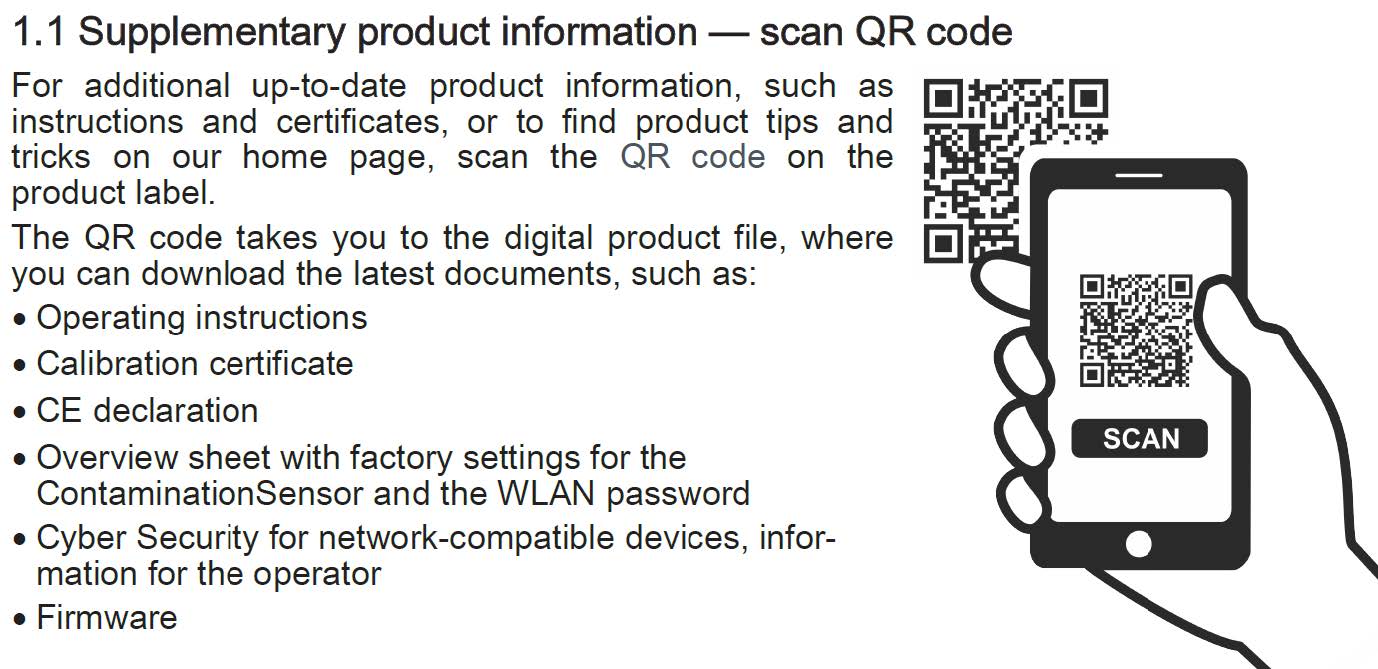 What is the purpose of the Web UI settings sticker?
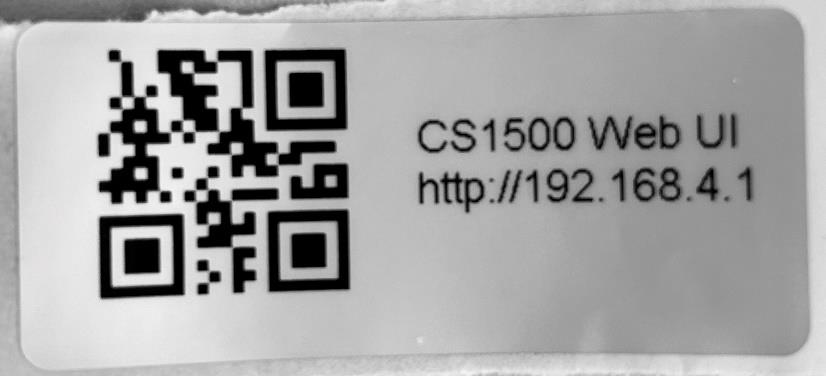
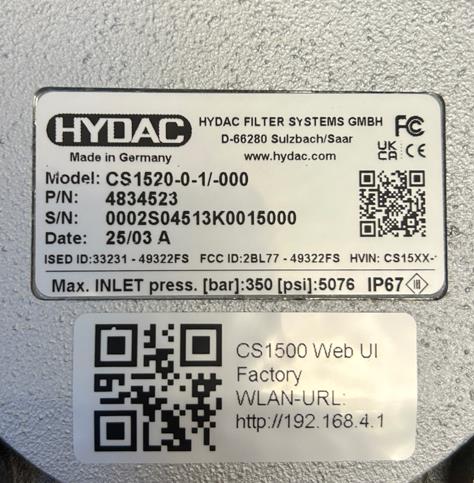
Web UI settings sticker is a part of a delivery Scope. It helps quick access to the Web UI by simply scanning the QR-Code. Make sure that before end device must be connected to sensor via Wi-Fi. For later convenience sticker can be brought on the sensor back so that it is always available in future.
 What are the lowest ISO Classes new sensor can indicate?
Previous Sensor CS1000:
- Minimum indication limit: ISO 9/8/7.
- Fluids cleaner than these values were displayed as <9/<8/<7 or marked as “Too Clean.”
- If the cleanliness level of any single channel falls below the indication limit, all three channels will display <9/<8/<7.
New CS1500 Sensor:
- Minimum indication limit: ISO 7/6/5.
- Fluids cleaner than these values are displayed as <7/<6/<5.
- If the cleanliness level for one channel falls below the indication limit, that channel will display a “<” symbol independently of the other two. Example: 9/<6/<5.
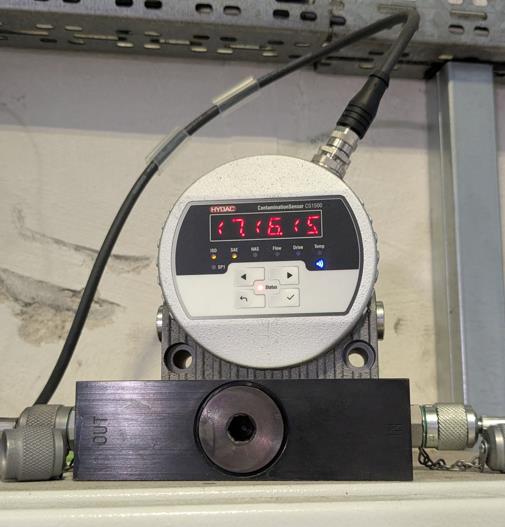
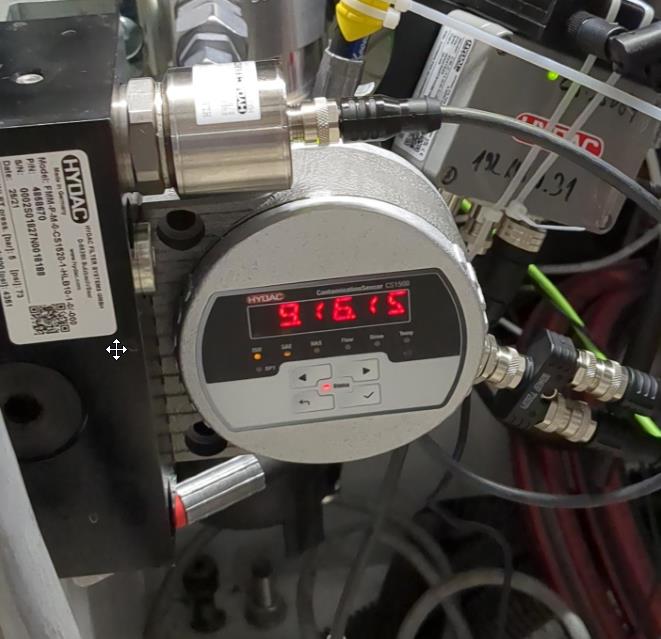
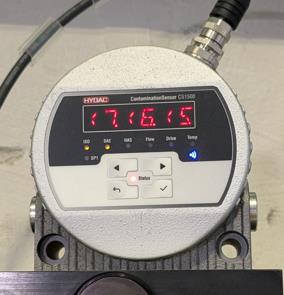
Important: Lowest ISO Class indication for serial CS1500 sensor is limited at ISO 7/6/5. Everything under it will be shown as ISO <7/<6/<5.
Can new sensor operate with ultra clean fluids under ISO 7/6/5?Yes, under specific conditions such as stable flow and extended measurement cycles (e.g., 30 minutes), the sensor can achieve readings down to ISO 2.
However, to prevent unstable results and flow error codes with ultra-clean fluids, the new sensor is intentionally limited to ISO <7/<6/<5.
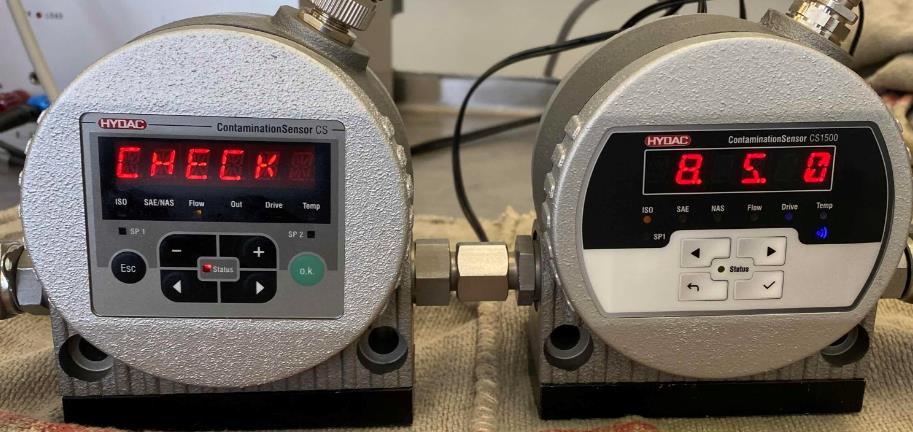
Important: Lowest ISO Class indication for serial CS1500 sensor is limited at ISO 7/6/5. Everything under it will be shown as ISO <7/<6/<5.
 How to present CS 1500 Web User Interface?
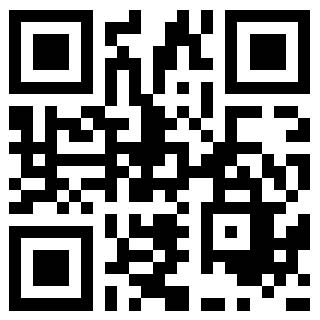
For presentation purposes, a dedicated Web Demo Mode is available globally. Simply visit https://cs1500.hydac.com or scan the QR code. This demo simulates the behavior of the CS1500 and is always updated to the latest version. Multiple users can explore the features simultaneously without needing a physical connection to the sensor—where only one user can connect at a time. For exhibitions and training sessions, you can either place a tablet next to the sensor with this URL open or share the QR code so participants can access the demo on their own devices.